

Document format routing: choose preview, editing, conversion, or download
Choose preview, editing, conversion, or download paths using validated content type and task requirements, with clear fallback behavior.
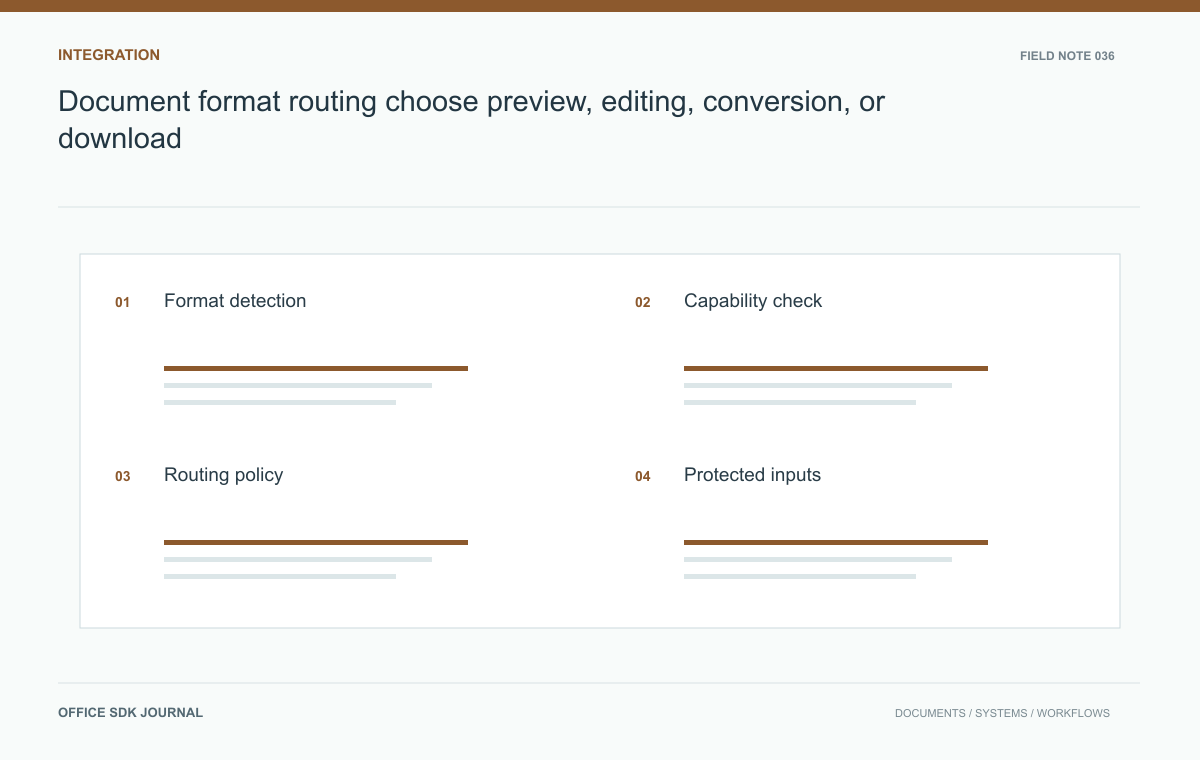
Document format routing is the decision that maps a validated file and requested operation to preview, editing, conversion, download, or rejection. Recognizing an extension is not enough: a file may support preview but not editing, or be quarantined and unavailable for either. Keep the same routing policy behind menus, deep links, and jobs.
Detect content, then check the requested capability
File extensions, declared MIME types, and inspected structure provide evidence about content type, but they serve different purposes and can disagree. Validate uploads using maintained tooling and an appropriate allowlist before routing. Then consult the documented capabilities of the selected service for the intended operation. A format supported for preview may not support editing or round trip export. Record those distinctions in a capability matrix rather than treating a recognized extension as proof that every document workflow is available for that file.
Use a reviewed decision model across entry points
Define outcomes such as open in editor, generate preview, show an existing immutable rendition, download only, require a password workflow if supported, or reject with guidance. Include permissions and document state, such as quarantine or pending conversion, in the decision. Keep the policy centralized enough that list actions, direct links, and backend jobs agree. A browser menu that offers Edit while the server routes the same file to download creates a confusing contract and can expose paths that were never included in acceptance testing.
| Input to the decision | Example distinction |
|---|---|
| Validated type | The inspected container disagrees with its filename extension |
| Requested operation | Preview support exists but round-trip editing is unverified |
| Lifecycle state | Validation pending versus released content |
| Authorization | Viewing allowed but downloading denied |
| Processor capability | Configured service supports the exact requested path |
Keep a reason code with the routing result so support can explain why a file opened in a particular view. It need not expose implementation detail in the ordinary interface. A message such as “This format is available for download only” can be backed by a precise policy result without displaying internal service names.
When adding a format, test every enabled action rather than only the default icon click. Direct editor URLs, batch conversion, restore flows, and shared links can bypass a frontend menu. The server should reach the same supported decision for the same identity, operation, and state. An unsupported operation should fail predictably without entering a repeated conversion loop.

Ambiguous, encrypted, and damaged inputs differ
When filename and inspected content disagree, do not silently select the most permissive route. Apply the validation policy and give a useful explanation. Encrypted documents, damaged containers, and unsupported embedded features may need specific handling distinct from an unknown extension. Avoid repeated conversion attempts for a permanent input limitation. If a safe download fallback is allowed, keep it subject to normal authorization and content handling controls. A fallback should help the user complete an approved task, not bypass the validation boundary that blocked processing.
Maintain the supported-route matrix
- Track preview, editing, import, and export support separately.
- Validate actual content before selecting a processing path.
- Apply the same policy to menus, deep links, and background jobs.
- Provide specific recovery guidance for unsupported, encrypted, or damaged inputs.
- Retest representative routes when upgrading processors or adding formats.
Exercise a mixed project folder
Create a test folder containing a workbook, a PDF, an image, a plain text file, an unsupported archive, and a deliberately mislabeled harmless file. Request preview and edit actions with users who have different permissions. Compare visible actions, backend routing decisions, and final outcomes. Add a pending conversion and a quarantined object to confirm that lifecycle state affects routing. This scenario verifies the complete policy instead of only checking that each extension has an icon or that a filename based switch statement returns a value.

Choose the route from validated capability
| Requested action | Required evidence | Fallback when unavailable |
|---|---|---|
| Edit | Validated content type, edit support, permission, and usable document state | Offer preview or download with a specific reason |
| Preview | Validated content type, render support, and read permission | Use an existing immutable rendition or an authorized download |
| Download | Authorized access to the original file | Preserve the source without implying preview or edit support |
| Reject or quarantine | Validation failure, unsafe input, or unavailable document state | Explain the blocked condition and the next supported action |
Route a document through one reviewed decision sequence
Use 5 files, 4 requested operations, and 2 user roles to cover supported, mislabeled, pending, unsafe, and unsupported routes.
- Inspect the actual content type and current document state.
- Name the requested operation: preview, edit, convert, or download.
- Check operation support and the user permission required for that route.
- Select the supported processor, a specific fallback, or an explicit rejection.
- Apply the same rule to menus, deep links, and background jobs.
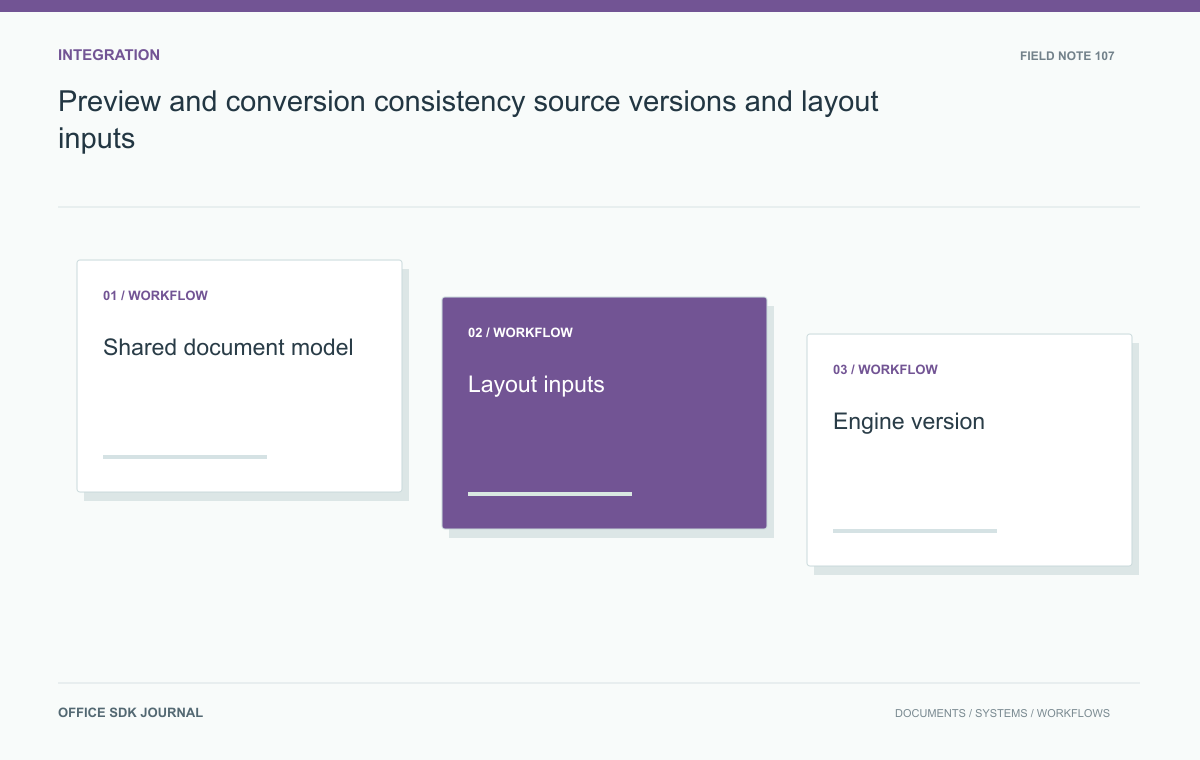
Preview and conversion consistency: source versions and layout inputs
Keep preview and converted output aligned through common models, explicit layout inputs, cache versioning, and approval guards.
Read story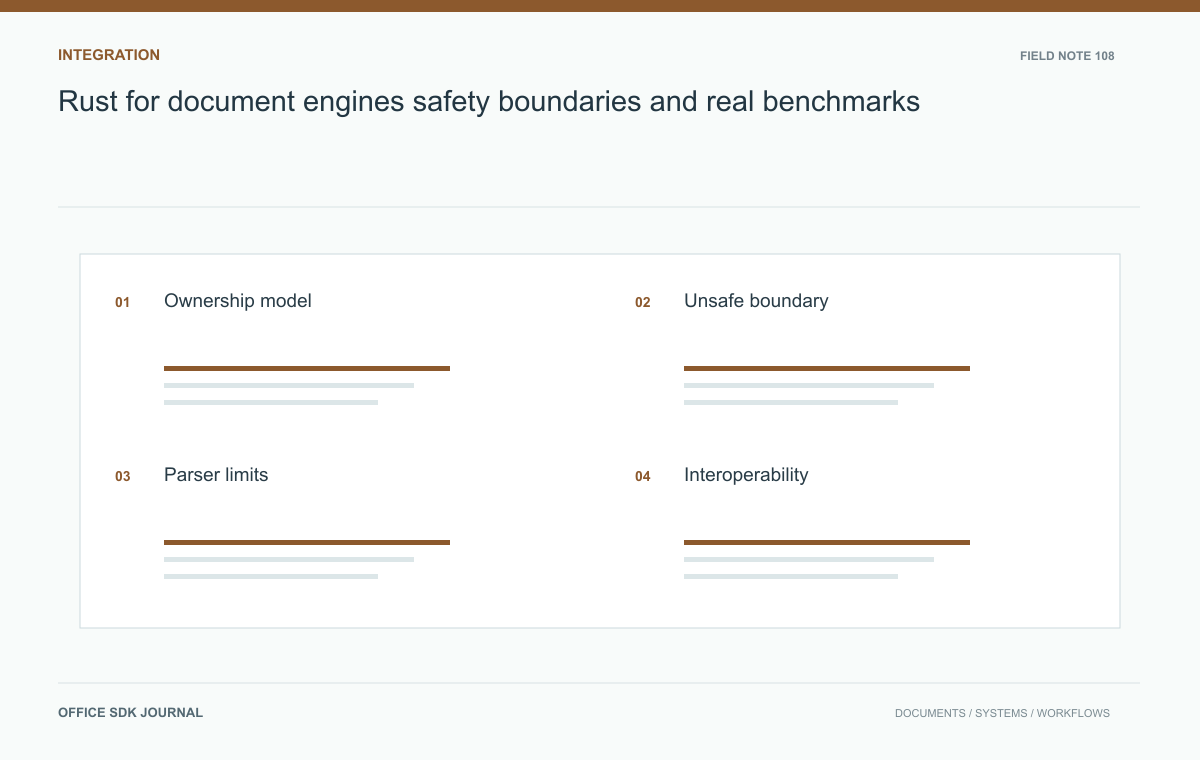
Rust for document engines: safety boundaries and real benchmarks
Assess safe code, native interfaces, parser limits, correctness, deployment, and maintenance without language-based performance claims.
Read story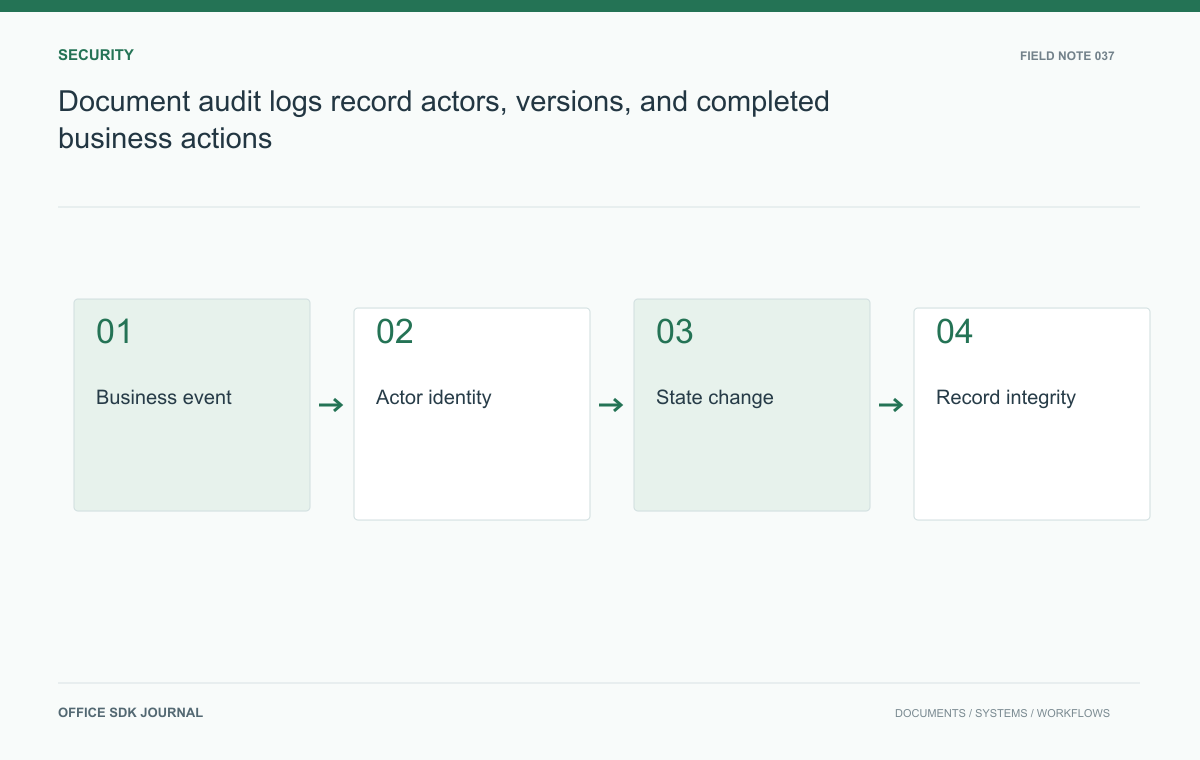
Document audit logs: record actors, versions, and completed business actions
Record business actions, version relationships, and authorization context without confusing audit history with raw application logs.
Read story